ConnectWise backup breach: what to check before you reconnect
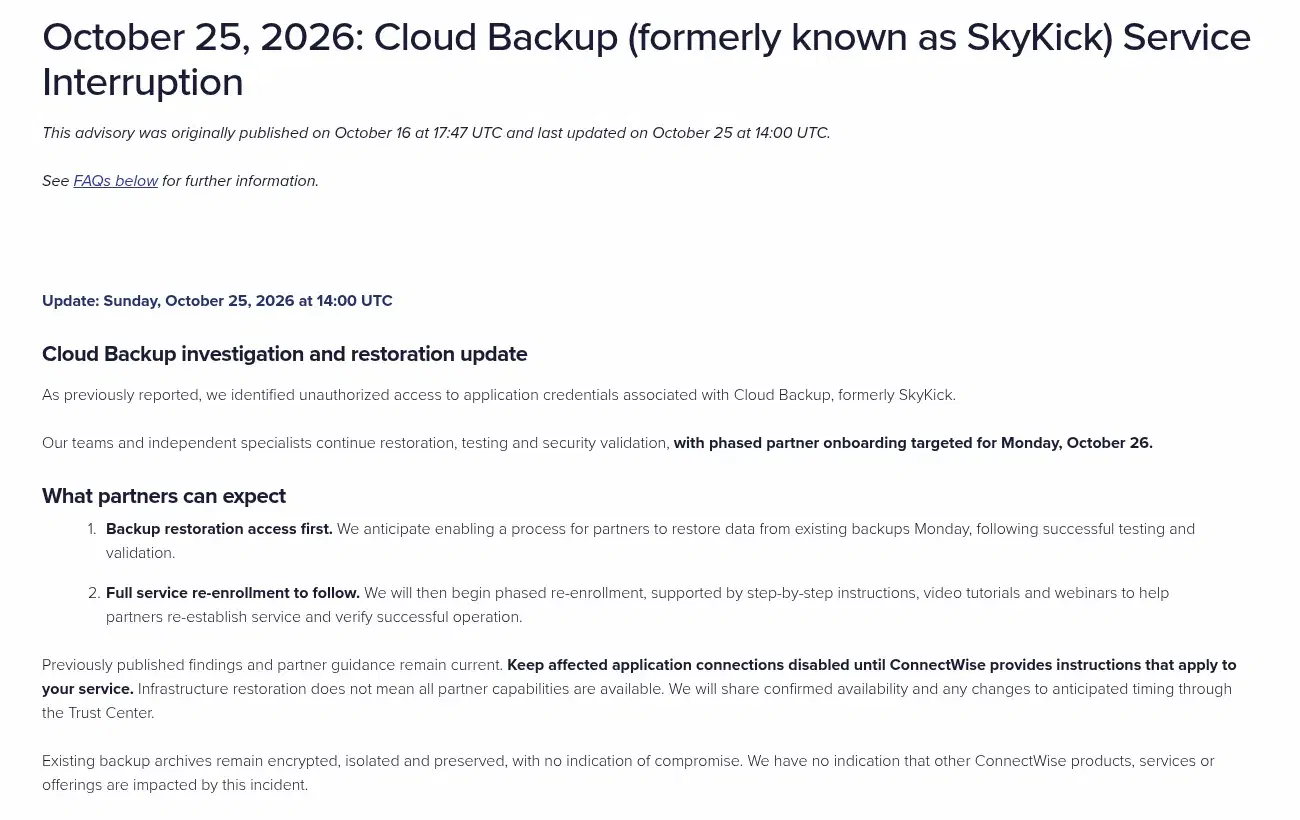
Don't let your MSP switch the ConnectWise backup app back on until someone has checked what it may have left behind in your Microsoft 365. ConnectWise is due to open restores from existing backups today, 26 October, with re-enrolment to follow in phases. Its own fix does not remove access an attacker may already have set up inside your tenant, so ask your MSP for four things first: the logs saved, every app's permissions reviewed, new secrets and role changes since 13 October checked, and a list of what the re-enrolled app will ask for before you approve it.
How did a backup app get into Microsoft 365 without a password?
A backup app signs in as itself, not as one of your users. When it was set up, someone in your company consented to give it broad, tenant-wide permissions so it could read and restore mail and files. Whoever holds the app's credential gets that same reach. SpecterOps puts it plainly:
"MFA doesn't apply because this is an application sign-in, so no user, device, or MFA prompt is involved." SpecterOps, 17 October 2026
Conditional Access doesn't fill the gap either. Microsoft's policies for app identities cover only apps registered in your own tenant; third-party apps like this one are excluded.
That is what happened here. On 15 October the Cloud Backup app's credential (the product was formerly SkyKick) was used to sign in to customer tenants. By 19 October Huntress had counted nearly 1,000 tenants with sign-ins from the attacker's address, and about 300 of them had succeeded. In one tenant, a second ConnectWise app gave itself Global Administrator and added new secrets to two other apps. That kind of change is a way back in that survives a password reset, and it is what the checks below look for.
What should our MSP check before reconnecting?
ConnectWise has published a step-by-step guide for MSPs. Every step happens in the Microsoft Entra admin center and Microsoft Purview, and it should be done in your tenant, not just the MSP's own. In plain terms:
- Save the logs today. Entra keeps sign-in and audit logs for 7 days on the free tier and 30 days on P1 or P2. On the free tier, the 15 October sign-ins are already gone. On P1/P2 they disappear in mid-November. Microsoft 365's own audit log in Purview is kept separately, for 180 days on standard plans, so export that too.
- List every app that has consent. Under Enterprise applications, remove consent for anything nobody uses, including old SkyKick entries. Keep the affected ConnectWise apps disabled, not deleted: their settings are evidence.
- Look for new keys. Check every app, not only ConnectWise's, for client secrets, certificates or federated credentials added since 13 October, and for new app owners.
- Check admin roles held by apps. An app holding Global Administrator, Application Administrator or Exchange Administrator needs a reason on record.
- Check mail. Look for forwarding to outside addresses, new inbox or transport rules, and delegated mailbox access.
- Check accounts and policies. Look for new users, password resets, changed MFA methods and edits to Conditional Access since 13 October.
Ask for the result in writing for your tenant, with the dates covered. ConnectWise is careful to say that a clean search cannot rule out activity the logs never captured, so the dates matter.
Are our backups safe, and can we restore today?
ConnectWise says existing backup archives "remain encrypted, isolated and preserved, with no indication of compromise." Restore access comes first: its 25 October update says it anticipates opening a restore process today, after testing. Full re-enrolment follows in phases, with step-by-step instructions. Until those instructions cover your service, ConnectWise's advice is to keep the affected connections disabled. Its next update is due by 14:00 UTC today, so check the Trust Center before assuming restores are open.
What are we approving when we re-enrol?
Re-enrolling means consenting to the app again, so this is the moment to decide what it gets. Before anyone clicks Accept, ask your MSP:
- Which permissions the app requests, and whether each one is read-only or read-write.
- Whether it needs all of them, or only mail and files.
- Who in your company owns the app and will be told if it gains a new secret or role.
- When the permissions will next be reviewed. Microsoft's guide to reviewing app permissions shows where to look.
The same questions apply to every other management or security tool your MSP has connected. The backup app was the door this time; any app with tenant-wide consent could be the next one.
Next step: if nobody in-house can read these settings or check your MSP's answers, ask Vesprr Software for a security audit of your Microsoft 365 and Azure setup. See what the audit covers on the services page.
Sources
- Cloud Backup (formerly SkyKick) Service Interruption advisory and technical investigation guide, ConnectWise Trust Center, updated 25 October 2026
- ConnectWise SkyKick Breach: How to Check Your Microsoft 365 Tenant, Justin Kohler and Duane Michael, SpecterOps (updated 19 October 2026, citing Huntress)
- Microsoft Entra data retention, Microsoft Learn
- Manage audit log retention policies, Microsoft Learn
- Conditional Access for workload identities, Microsoft Learn
- Review permissions granted to enterprise applications, Microsoft Learn